Checking Jupyter notebook environment
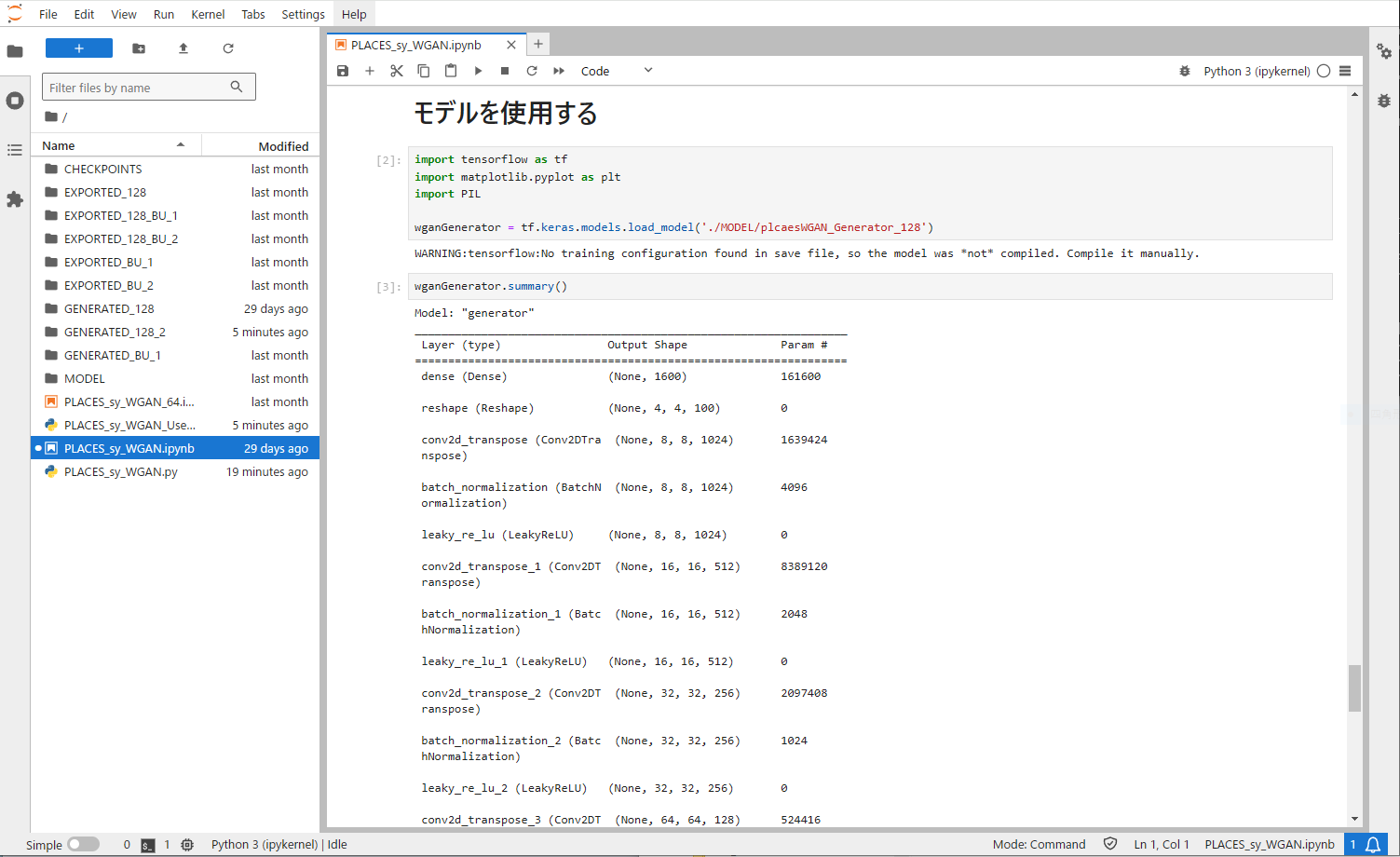
Machine learning projects are often built in Jupyter notebooks. Notebooks make it easy to run code in pieces and to display visuals like graphs.
However, if you need to run a project outside a notebook or package a Python project as an executable, you’ll need to export it from the notebook environment. This article briefly explains how to do that.

Here, we assume a machine learning project that uses neural networks and start from the point where the model has already been trained. The model is a generative AI based on a WGAN for image generation.
Although we’re still in a Jupyter notebook, we’ll prepare for separating it out by first adding code to import the necessary libraries. Since the generative model was built with Keras, we’ll likewise use Keras to load the trained model—specifically, via the tf.keras.models.load_model() function call.
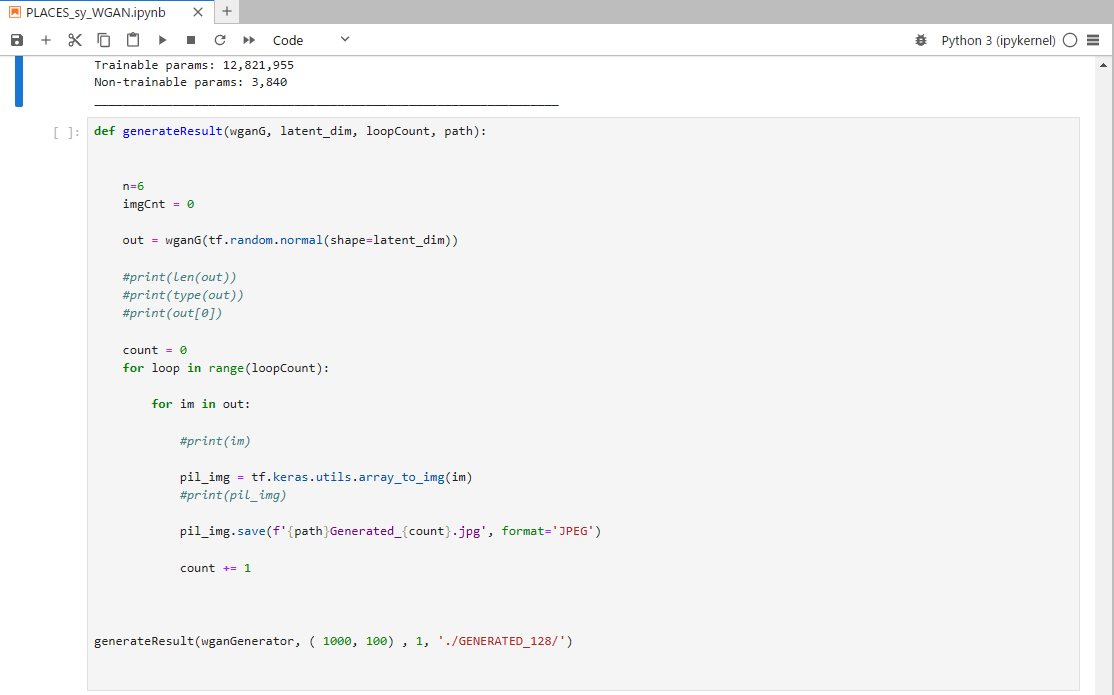
We load the model and set up a function to generate images with it. Even when building a model in a Jupyter notebook, it’s common to write code that runs the model for verification. So here as well, we’ll likely tidy up and reuse the existing model-verification code, or use it as is.
In this example, to generate 1,000 images into a specified folder, we feed an input vector of size 100 (the latent dimension). Hard-coding the output location and the number of images like this is, admittedly, inflexible. It’s better to parameterize these parts so the user can choose them, which makes the workflow more flexible.
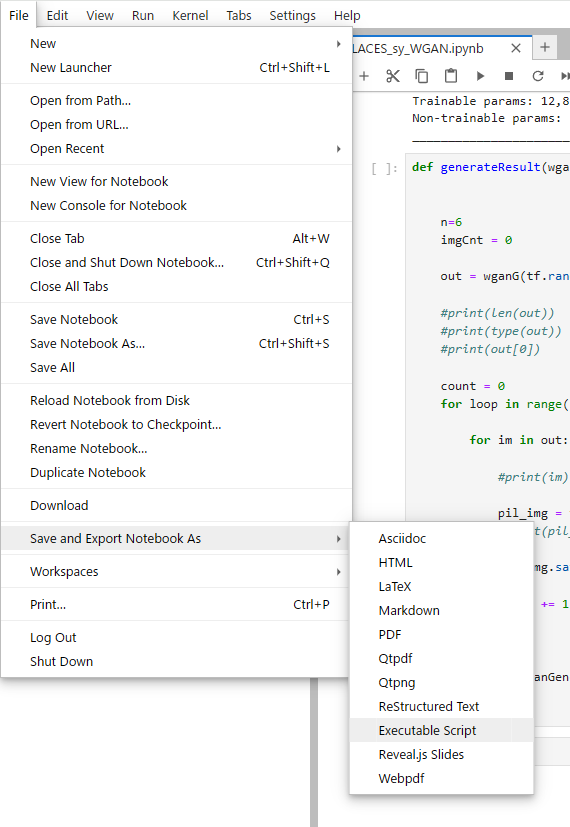
The actual export was done by converting the notebook to a .py file via the Jupyter notebook menu: File → Save and Export Notebook As → Executable Script.
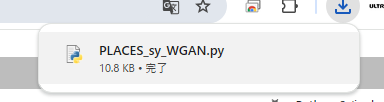
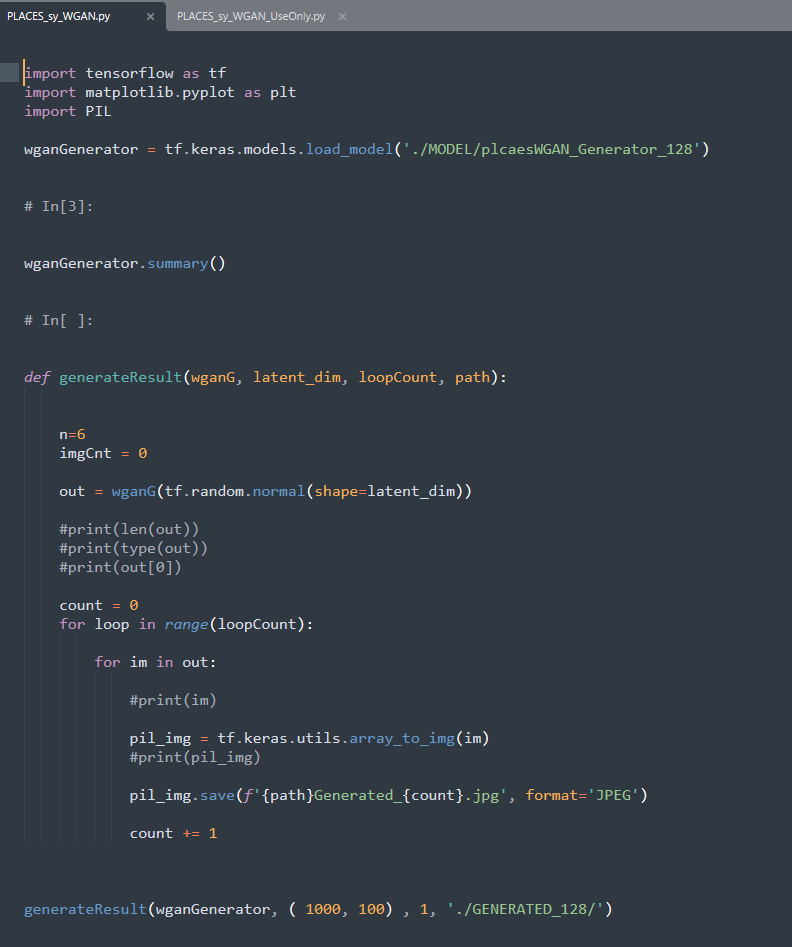
When exporting from a Jupyter notebook, the quick variable-inspection outputs you could see in the notebook are omitted. Keep only the essential verification code and tidy it up accordingly.

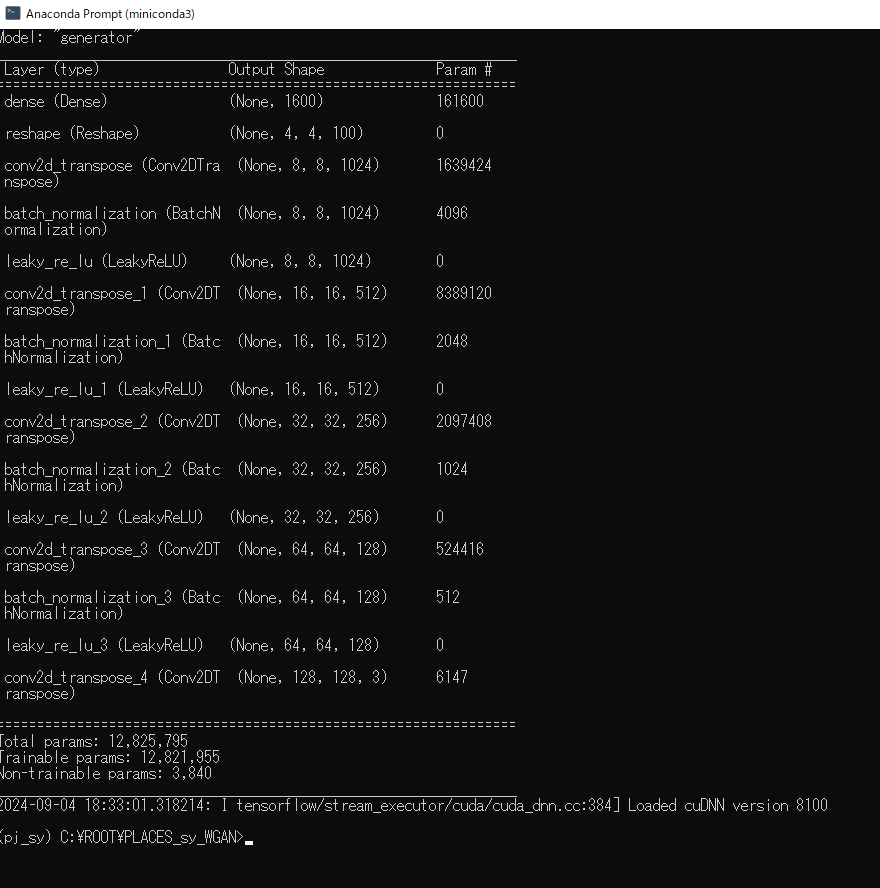
Now, let’s run it with the command-line tool. As with Jupyter notebook outputs, you’ll see the model details printed and images being generated. By first making it runnable as a standard Python script and then converting it to a native executable with a tool like PyInstaller, you can turn it into a distributable application.